The content input box is where most work is carried out in ChaTask. It is not only used for sending messages, but also for searching Tasks, invoking AI Agents, adding Warning Labels, using Hashtags, mentioning team members, and performing many other actions directly within a conversation.
This allows users to move seamlessly from discussion to task execution without leaving the chat screen.
1. Entering and Editing Content
You can type your message directly into the chat input box.
-
Press Enter to send a message.
-
Press Shift + Enter to insert a new line.
-
Supports copy & paste and drag-and-drop into the input box.
This is the fastest way to start a conversation or send a request to an AI Agent.
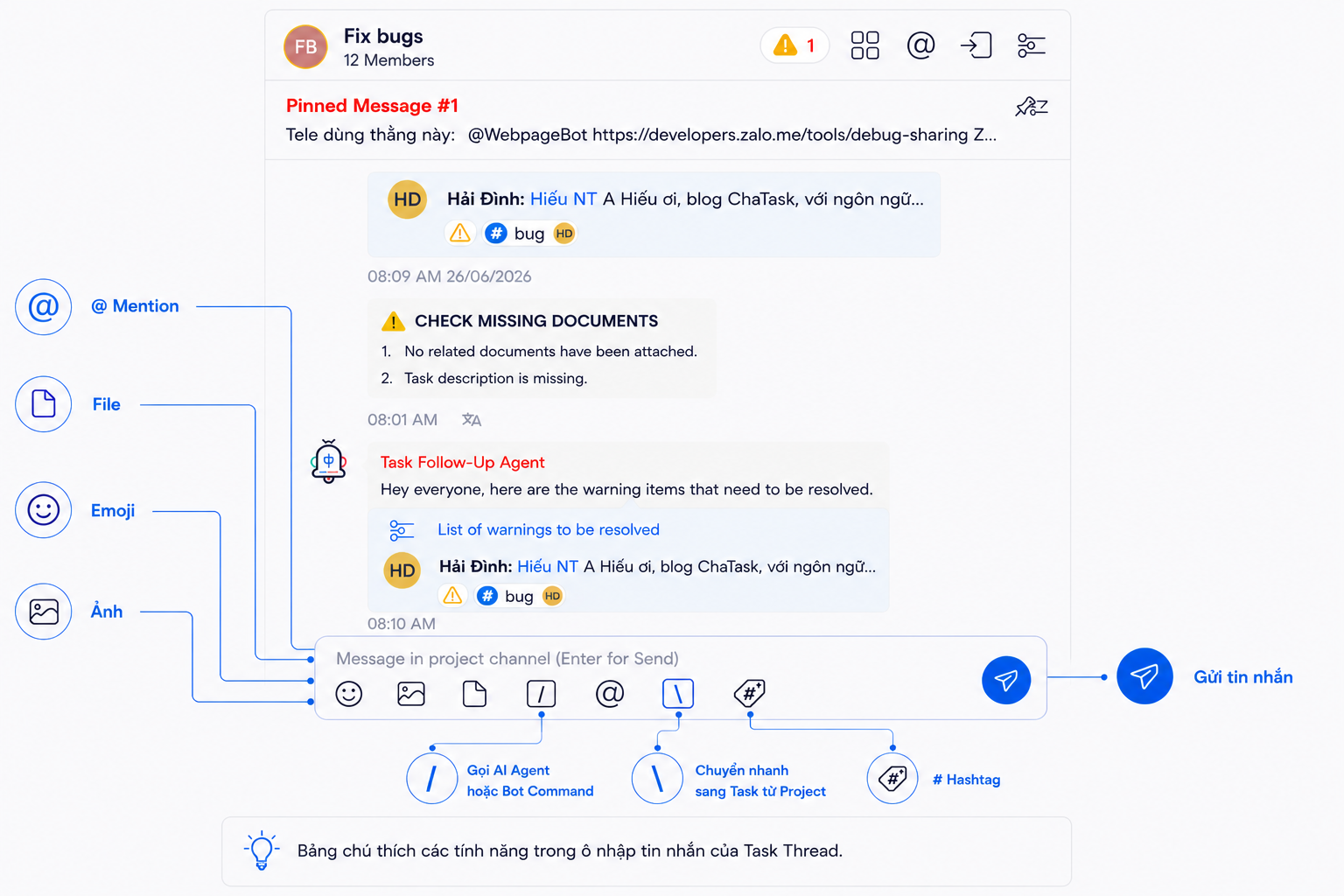
The ChaTask content input box not only supports basic operations such as entering text, sending messages, inserting emojis, attaching images and files, and mentioning members, but also integrates a wide range of features that enable users to execute work directly within the conversation.
Some of the key capabilities include:
-
Invoke an AI Agent or Bot Command using the / character.
-
Quickly switch to a Task within the current Project using the \ character.
-
Add Hashtags to categorize and retrieve information.
-
Add Warning Labels to track issues.
-
Assign roles (Assignee, Reviewer, Observer) to members in a Task Thread.
-
Link Tasks, AI Agents, and members within a single input.
As a result, the content input box becomes the interaction hub of ChaTask, allowing users to communicate, manage, and execute work without switching to another screen.
Flexible Content Formatting
ChaTask's content input box supports Rich Text, allowing you to compose messages in the most appropriate format for your communication instead of being limited to plain text.
Within a single message, you can combine multiple types of content, including:
- Text
- Images
- Videos
- Links
- File attachments
For example, you can organize your content as:
Text → Image → Text → File → Link
This allows you to explain an issue while attaching screenshots, supporting documents, and reference links within the same message.
As a result, information is presented in a clearer, more structured, and more intuitive way. This is especially useful for incident reporting, requirement discussions, document reviews, or work instructions. Recipients can access all the necessary context in one place without searching through multiple messages or different storage locations.
2. Use Mentions to Clearly Identify Responsibility
Use the @ symbol to mention a member or role within a Channel.
When someone is mentioned, they receive an instant notification. At the same time, ChaTask understands who is responsible for the content being discussed.
Mentioning Members and Assigning Roles in a Task Thread
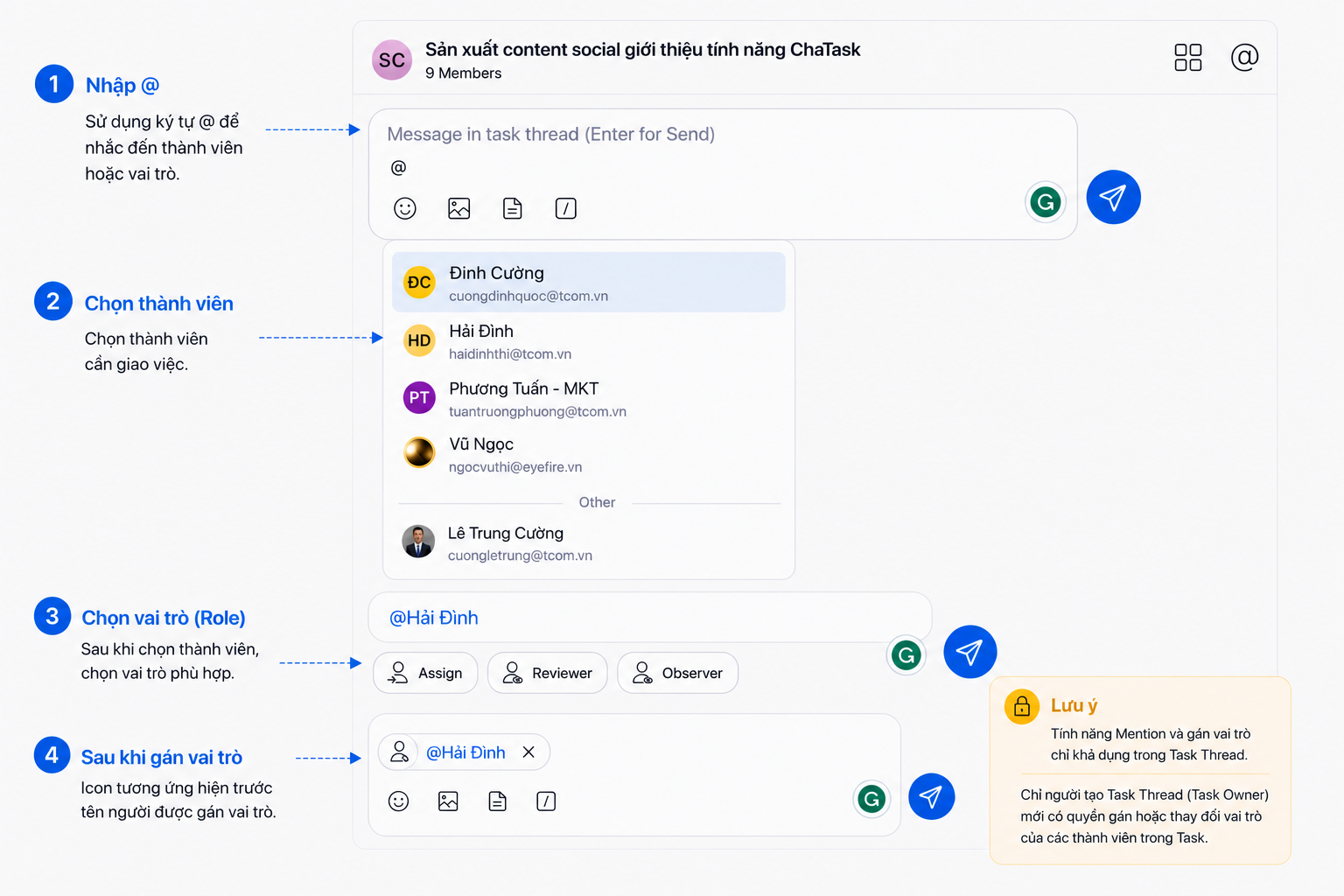
Within a Task Thread, you can not only mention members but also assign roles at the same time.
After typing @ and selecting a member, ChaTask displays the available roles:
-
Assignee – Responsible for completing the task.
-
Reviewer – Responsible for reviewing and evaluating the results.
-
Observer – Monitors progress and receives updates.
After selecting a role, the member's name will appear with the corresponding role icon both in the input box and inside the Task Thread, making each person's responsibilities immediately visible.
Benefits
-
Clearly defines each member's responsibilities directly within the Task Thread.
-
Helps AI Agents understand who is responsible for execution, review, and monitoring.
-
Ensures reminders, discussions, and reports are directed to the appropriate people.
-
Reduces confusion when multiple members collaborate on the same Task.
Note: Mentioning members and assigning roles are only available inside a Task Thread. Only the Task Owner can assign or modify member roles.
Combining Mentions with Warning Labels
After mentioning a member, type # to display the available Warning Labels and select the appropriate one.
A Warning Label helps ChaTask understand who is associated with the issue while categorizing the content under a specific Warning type.
Note: Warning Labels can be created and customized by either the organization or individual users according to their needs.
Example:
@NThanh Tung - TGO #bug Login API fails when refreshing the token.
Once sent, the message is linked to both the responsible person and the selected Warning Label. The Warning is retained as a tracked issue until someone confirms it has been resolved, rather than disappearing into the chat history.
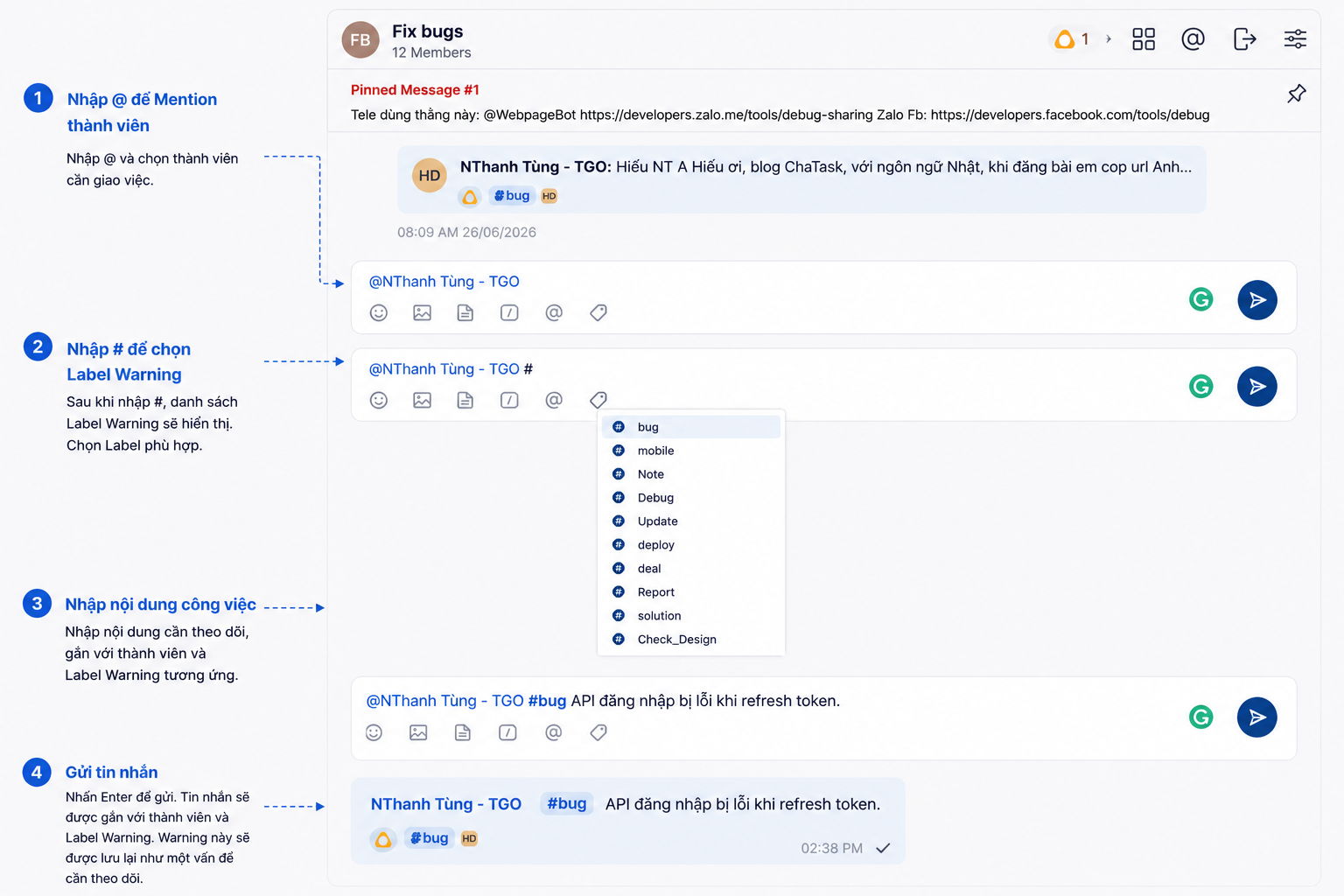
Combining Mentions with Warning Labels provides several benefits:
-
Clearly identifies the responsible person.
-
Flags issues that require tracking.
-
Helps AI Agents better understand the context.
-
Makes it easier to search, analyze, and summarize Warnings by categories such as Bug, Deploy, Report, or Solution.
Combining Mentions with Hashtags
You can also combine Mentions with Hashtags to identify both the relevant person and the topic.
First, type @ and select a member or role. Then type # or click the Hashtag icon on the toolbar. ChaTask displays the available Hashtags.
Examples: @NThanh Tung - TGO #bug
Or @NThanh Tung - TGO #deploy
Hashtags make information easier to categorize and retrieve. When a message or Task is tagged with a Hashtag, it becomes part of a structured knowledge system, making search, reporting, and work tracking significantly more efficient.
At the same time, AI Agents gain additional context, enabling them to process requests more accurately.
3. Search for and Link Tasks Within a Project
You can search existing Tasks within the current Project directly from the input box without leaving the conversation.
Type \ or click the Task icon on the toolbar. ChaTask displays the list of Tasks in the current Project for you to search and select.
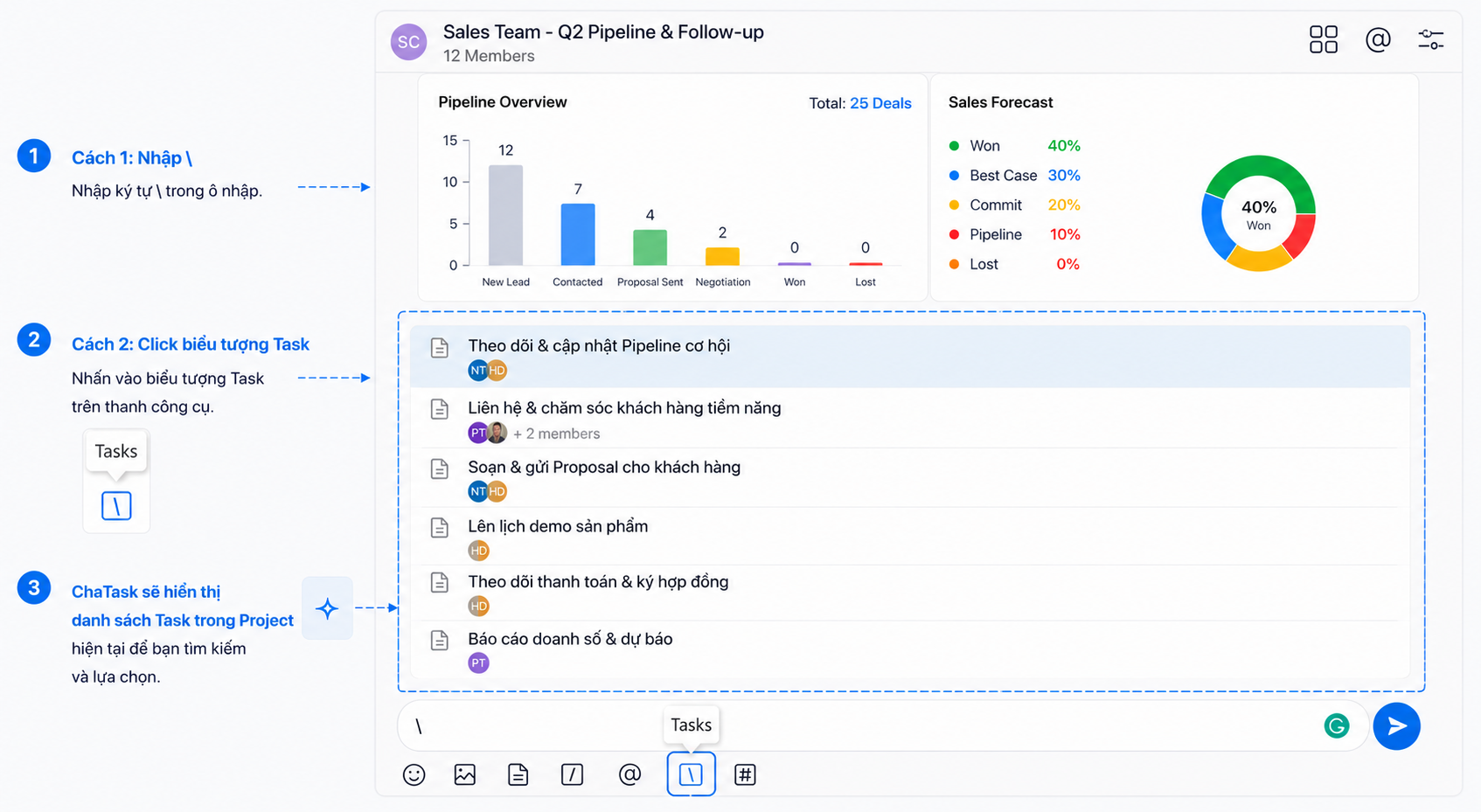
Once you select a Task, the message becomes linked to that Task. As a result, all discussions, documents, and progress updates are stored within the correct work context.
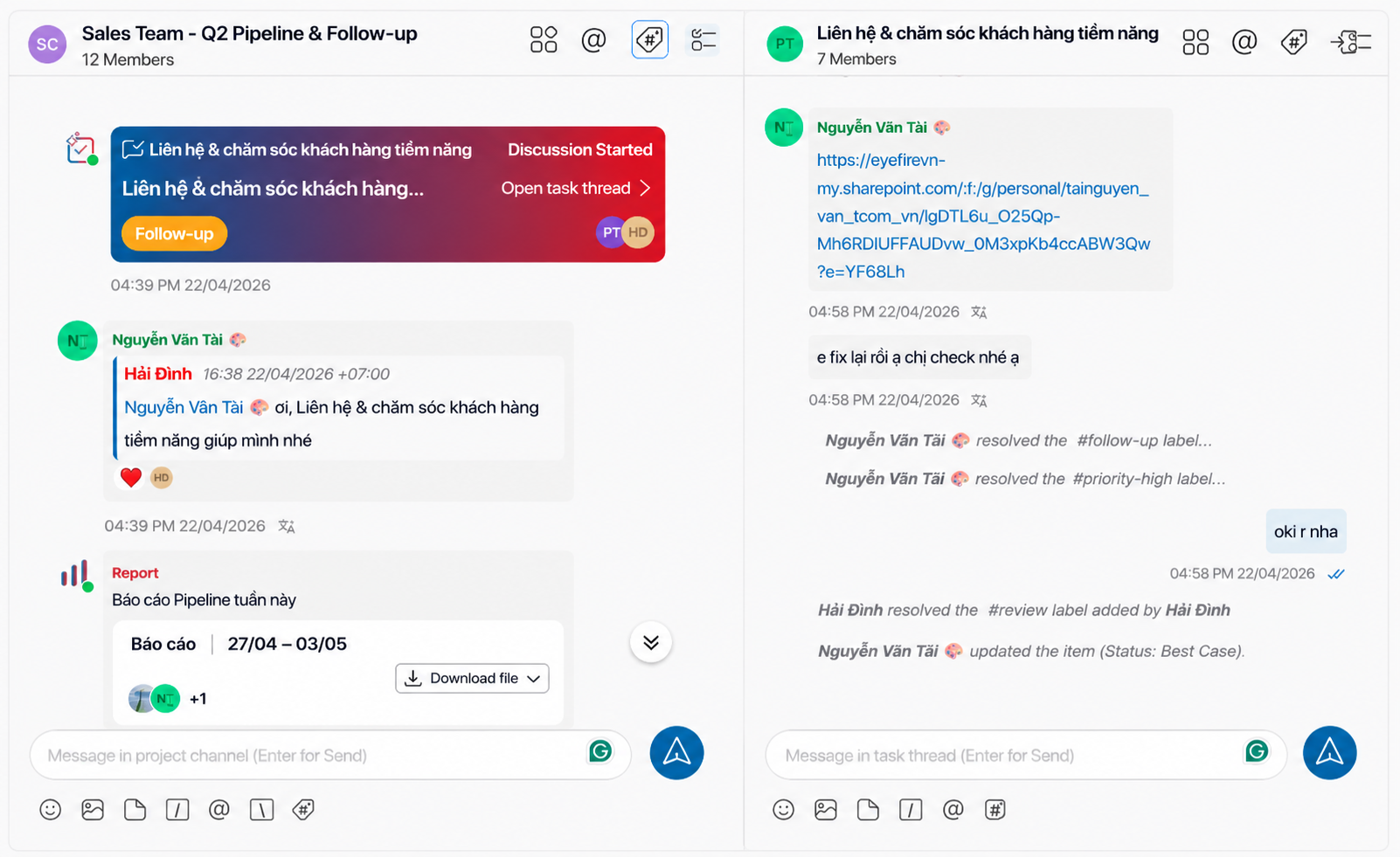
This also enables AI Agents to easily track work history, generate reports, and assist with related activities.
4. Invoke an AI Agent to process your request
Type / to open the list of AI Bots and system Bots.
Examples:
-
Admin Assistant
-
Reminder Assistant
-
Report Bot
-
Translator
-
Task Follow-Up Agent
Simply select the appropriate Bot and press Enter. The AI Agent will execute the requested task.
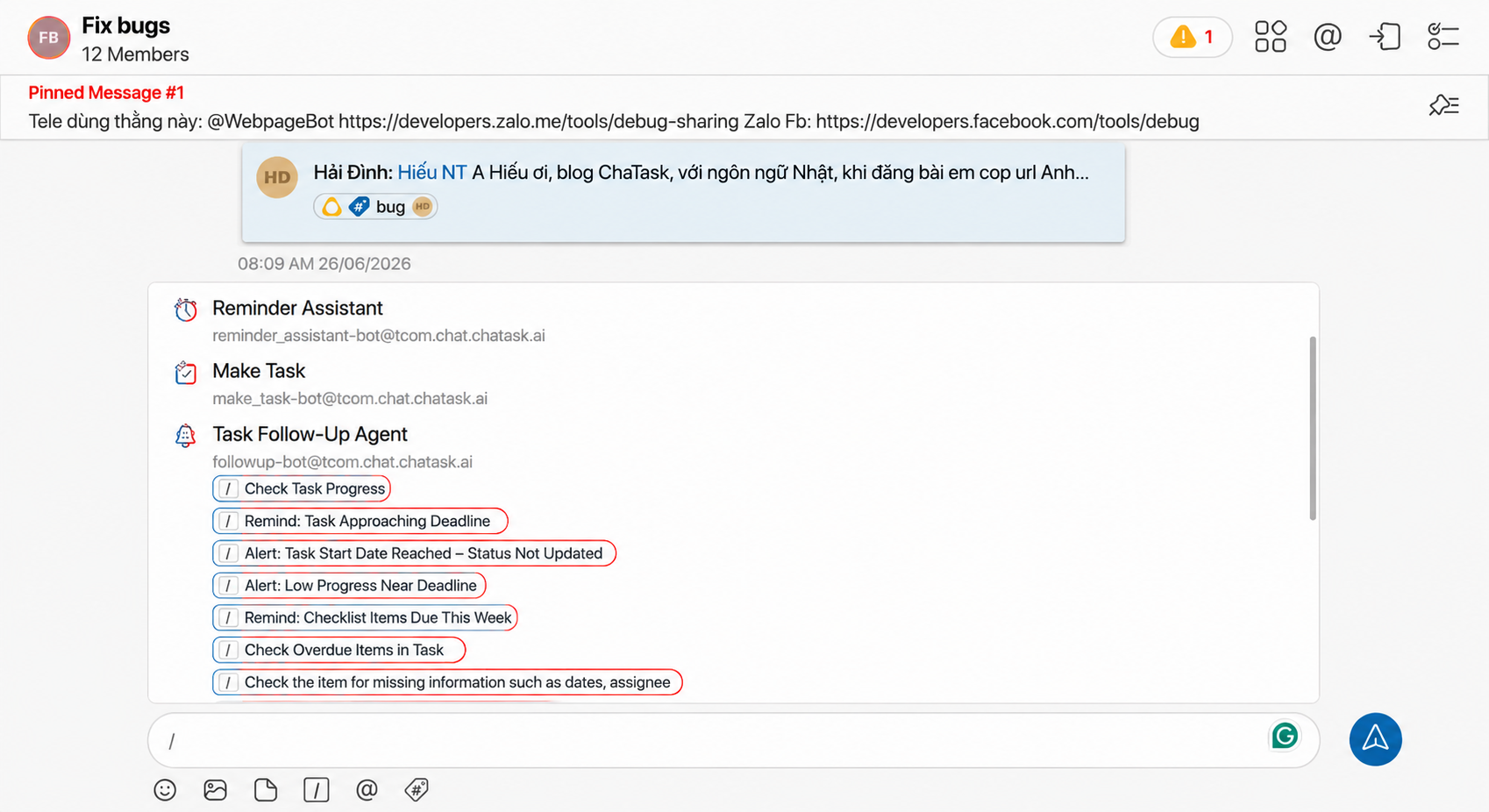
5. Using Bot Commands
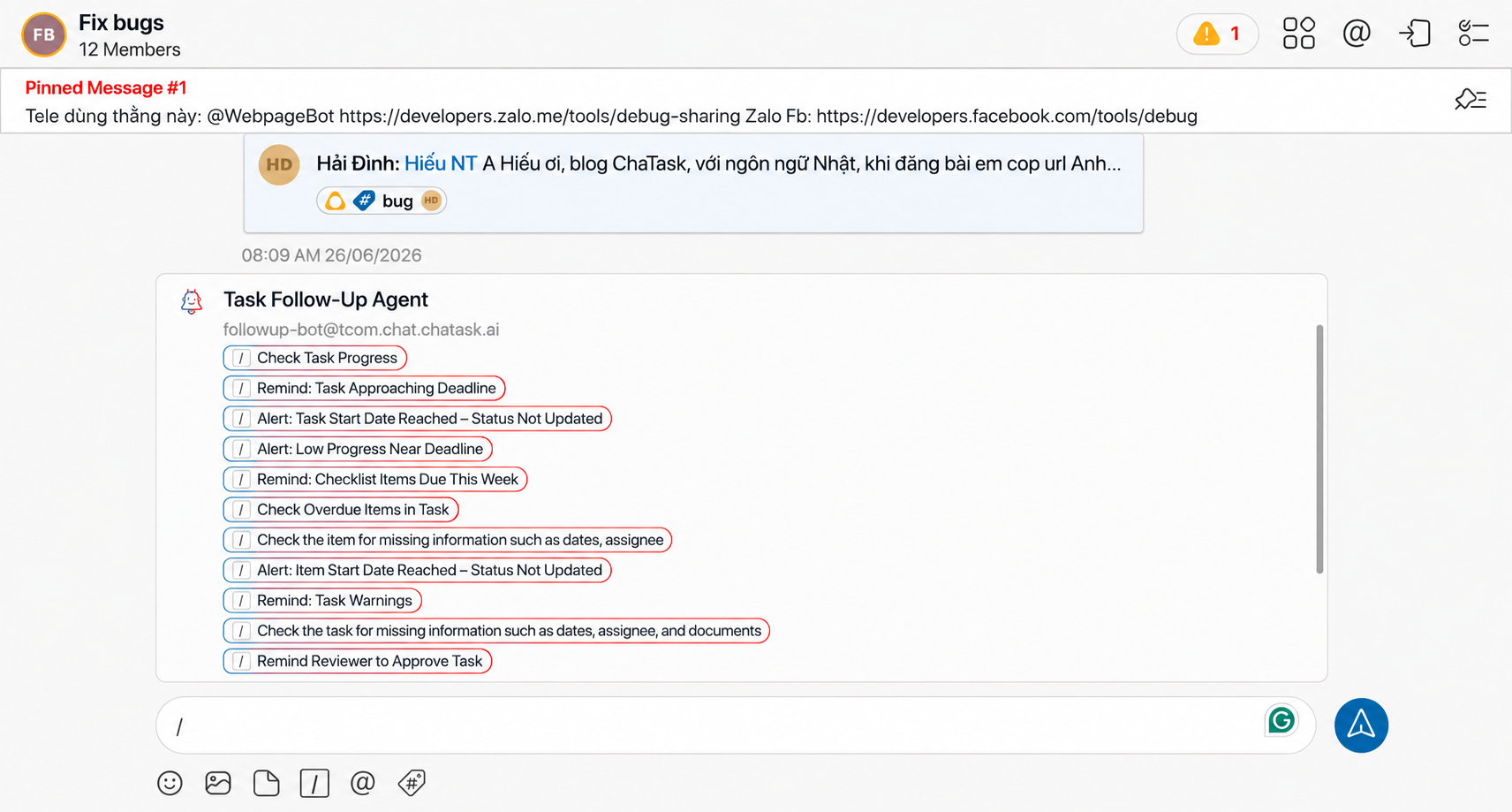
When you type /, ChaTask opens the list of available AI Bots. Frequently used Bot Commands for each Bot are also displayed directly beneath the Bot for quick selection.
For example, Task Follow-Up Agent may suggest commands such as:
-
/Weekly Project Progress Summary
-
/Check Overdue Tasks in Project
-
/Done Tasks With Unresolved Warnings
-
/List Tasks Pending Approval
Meanwhile, Report Bot may provide commands such as:
-
/Full Weekly Progress Report
-
/Individual Weekly Progress Report
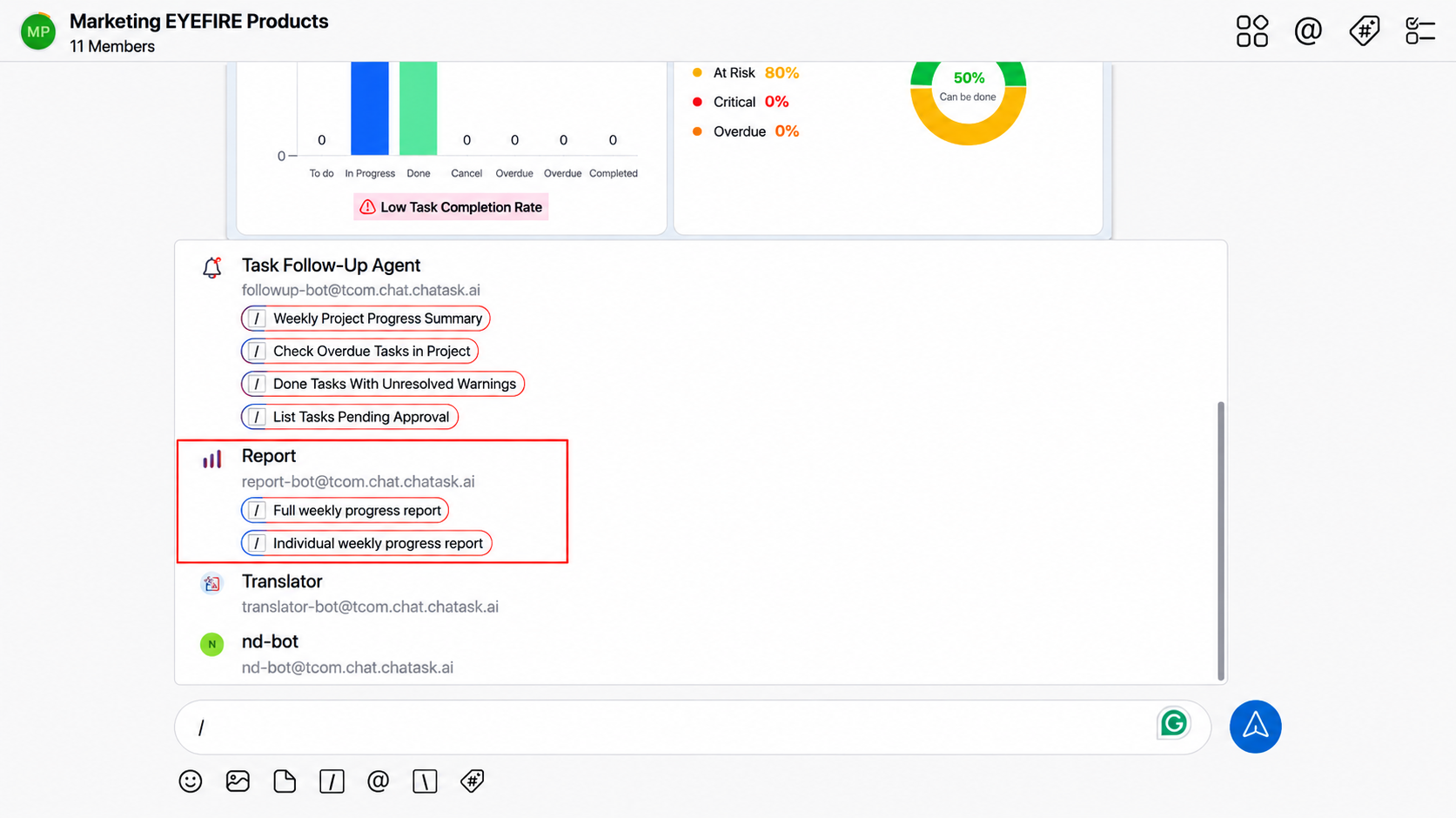
Simply select the desired command, and the Bot automatically performs the corresponding action without requiring additional prompts or lengthy instructions.
For example, instead of typing:
"Please check all overdue Tasks in the Marketing Project."
You can simply select:
/Check Overdue Tasks in Project
The Bot immediately understands the request and executes it.
Using Bot Commands provides several advantages:
-
Execute common tasks with a single selection.
-
No need to memorize command syntax or write lengthy prompts.
-
Standardizes AI interactions so Bots understand requests correctly from the beginning.
-
Reduces AI token consumption, lowering operating costs for the organization.
-
Ensures consistent results across all team members.
6. Chatting with Bots in a Channel
When working with AI Bots inside a Channel, you do not need to reply to a Bot's previous message to continue interacting.
Simply select the appropriate AI Agent or Bot Command for your task, then submit your request directly from the input box. The Bot automatically processes the request based on your input and the existing context within the Channel, without requiring multiple rounds of conversation for the AI to understand your intent.
This interaction model makes working with Bots feel as natural as collaborating with an AI assistant directly within the conversation, without switching to another application.
Users do not need to search for previous Bot messages to reply, open separate Threads, or manage multiple conversation flows.
As a result, Channels remain clean and easy to follow, while every Bot request is executed quickly within the correct work context.
Tips for More Effective Use
You can combine multiple features within a single input.
Example: @Hai Dinh #checkdesign and #update the article content.
Or: @Hai Dinh Assign #note this information while working on the task.
By combining Mentions, Warning Labels, Hashtags, and AI Bots within a single input box, ChaTask becomes a true AI Workspace, where communication, work management, and task execution happen seamlessly within the same conversation.