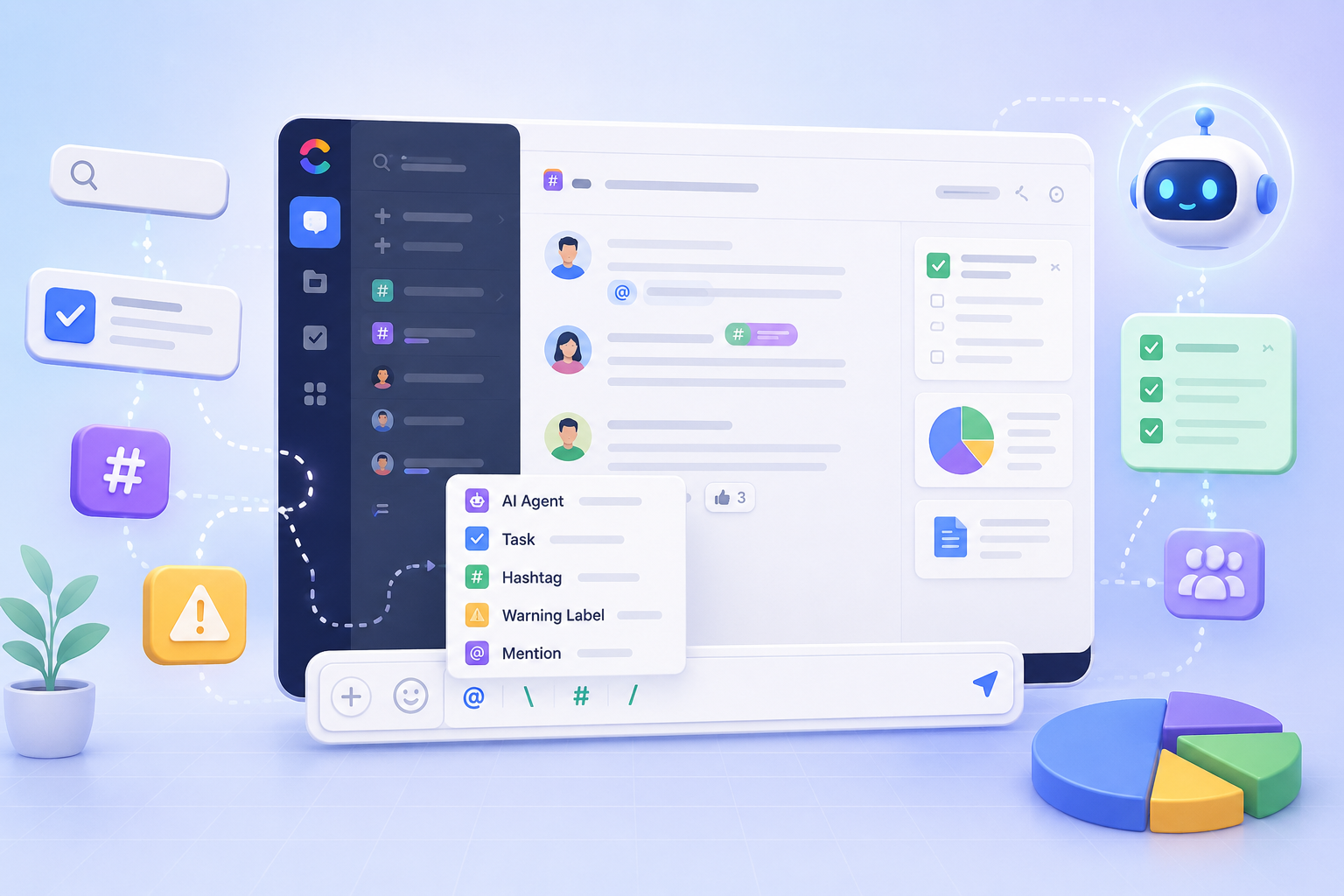
During daily work, there are always issues that need to be addressed but are not significant enough to become separate Tasks. Label Warning helps teams mark, track, and manage these issues directly within the conversation.
Each Warning can be attached directly to a message, assigned to a responsible person, tracked through different statuses, automatically followed up by an AI Agent, and maintain a complete processing history, ensuring that important items are not overlooked during discussions.
How to Create a Label Warning
Step 1: Select the Message to Mark
In a Task Thread, hover over the message that contains the issue requiring attention.
Step 2: Attach a Label Warning
Right-click the message and select the Label Warning you want to apply. Choose the most appropriate label depending on the issue. You can also create a new label if needed.
After selecting a label, it will appear directly below the message.
All members in the Task Thread will be able to see:
-
The issue content
-
The responsible person
-
The current status
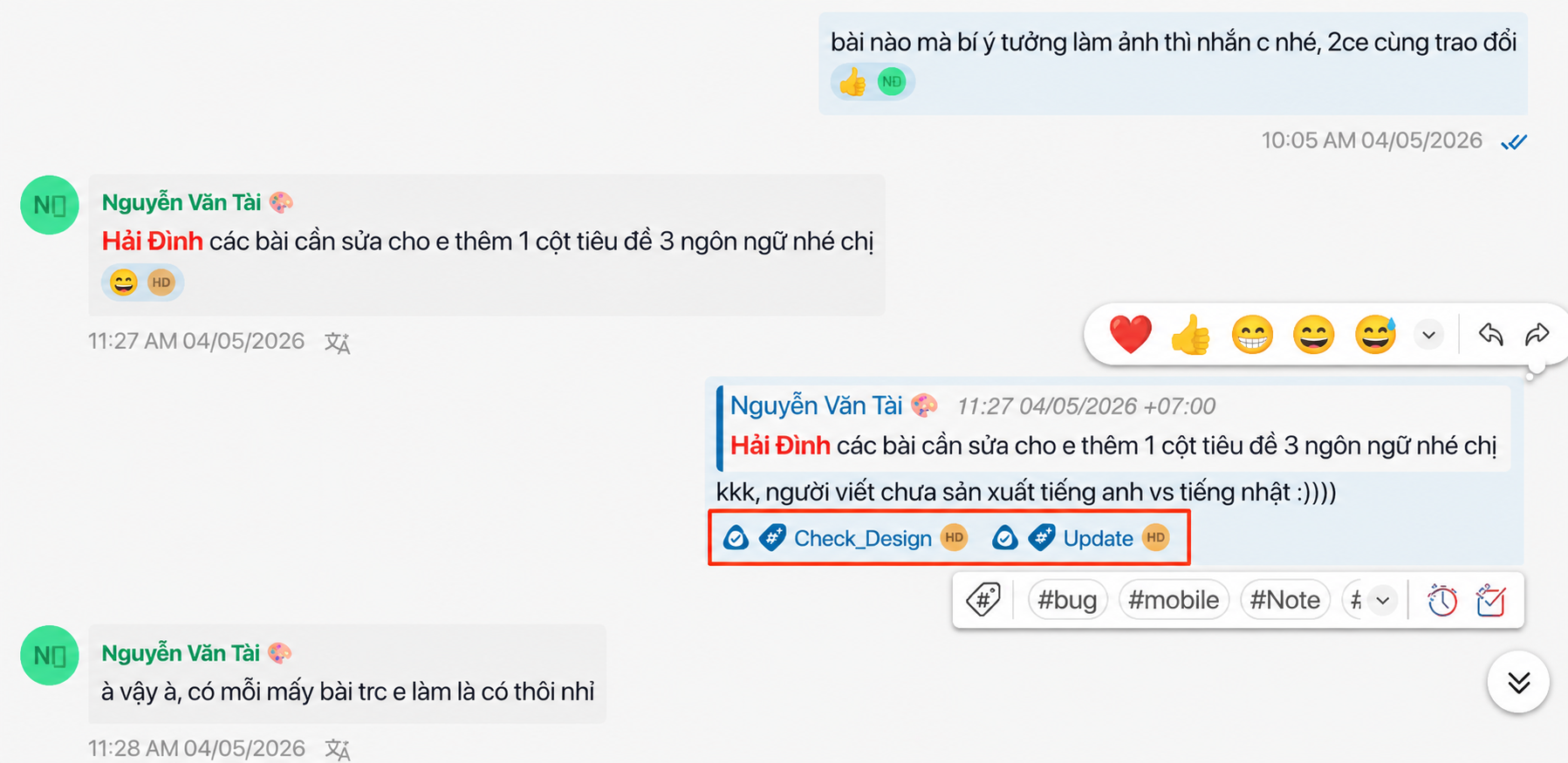
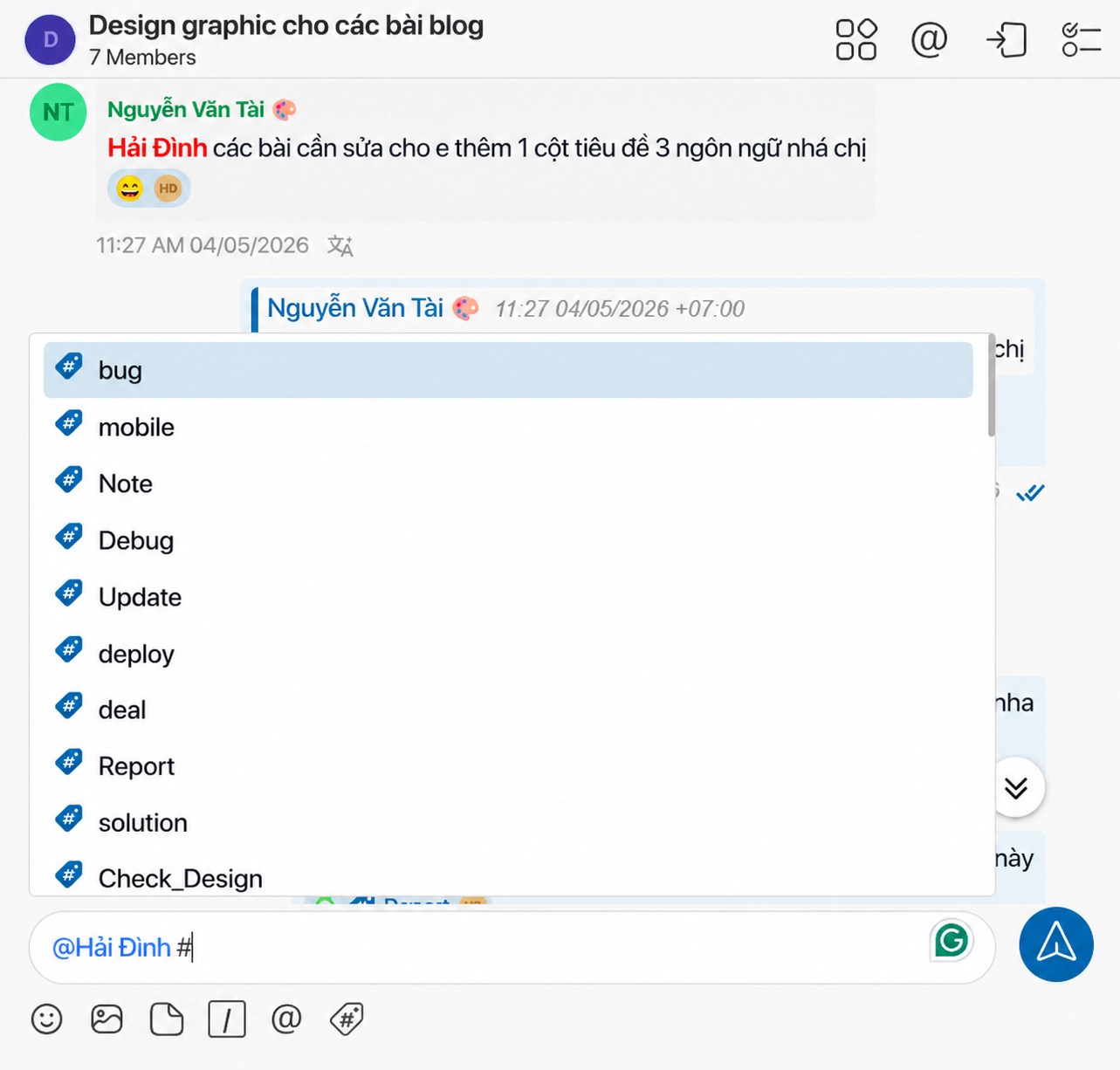
To assign a Label Warning directly to a specific person, use the following format in the chat input:
@username #label followed by the content that needs to be tracked.
AI Agent Automatically Tracks Warnings
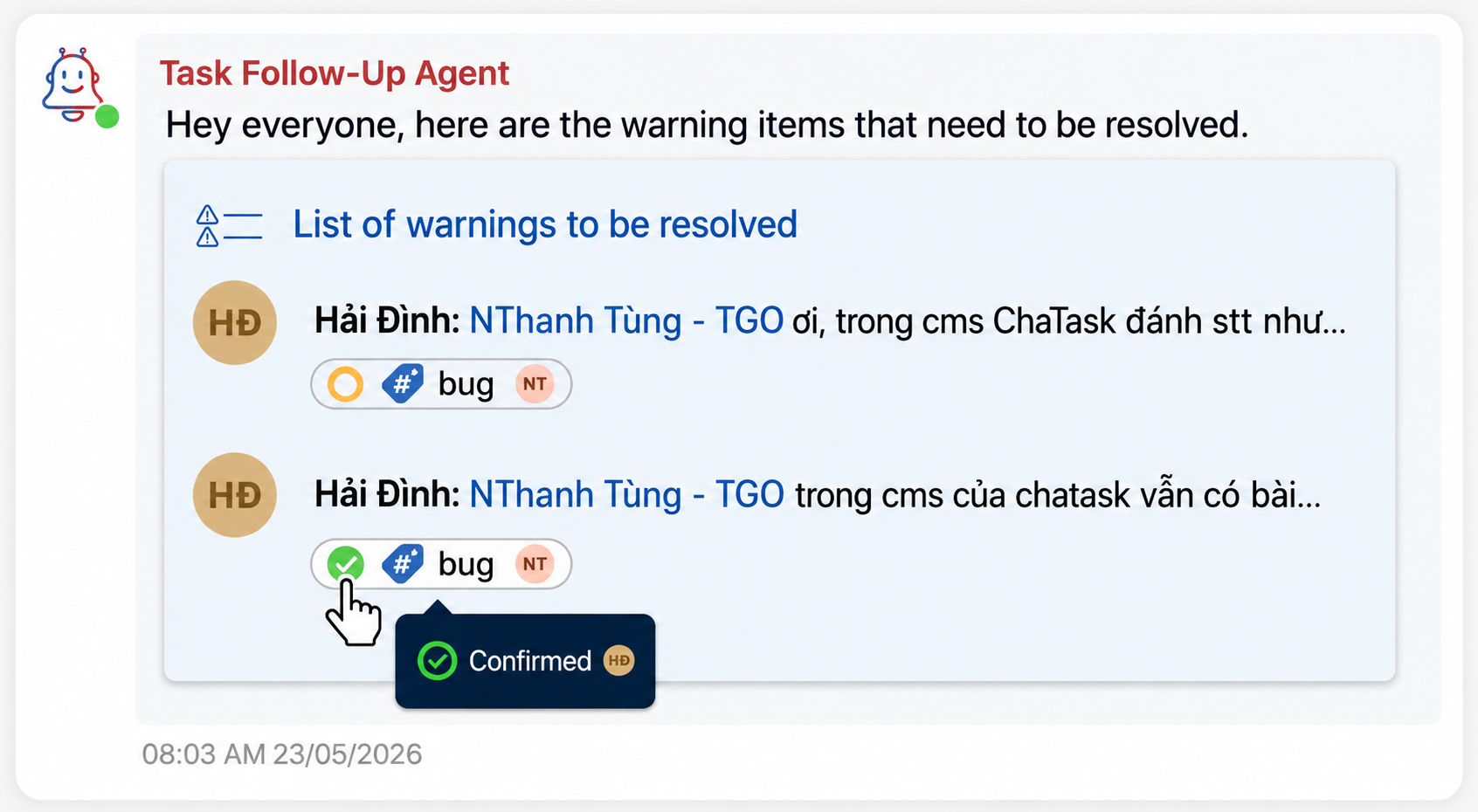
Once a Warning is created, the Task Follow-Up Agent will automatically monitor it.
If the Warning has not been resolved, the Agent will:
-
Compile a list of open Warnings
-
Send reminders directly in the Task Thread
-
Continue tracking until the Warning is closed
This helps reduce situations such as:
-
Forgetting to address an issue
-
Forgetting to follow up
-
Uncertainty about who is responsible
Marking a Warning as Resolved
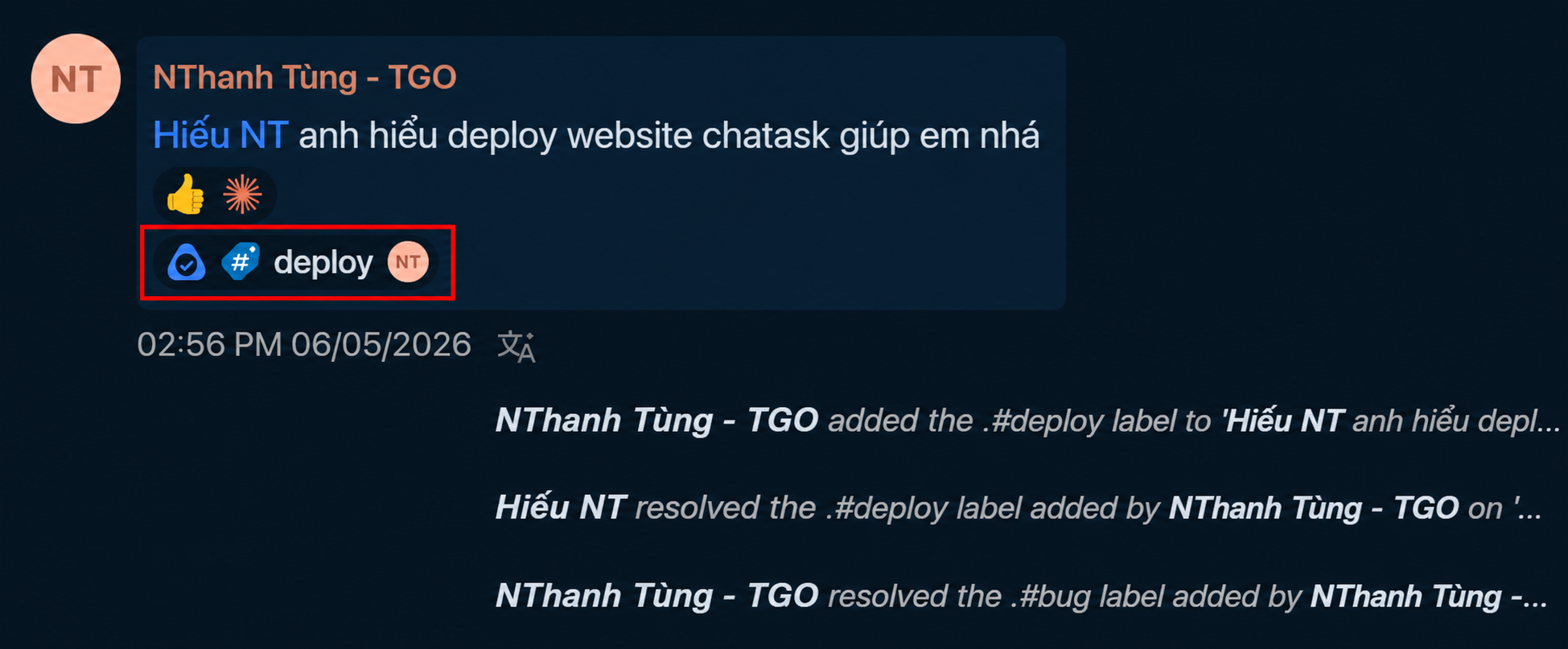
After completing the work, the assigned person simply clicks on the Label Warning.
The status will change to:
Resolved
This means:
I have completed my part of the work.
However, the Warning is not yet considered fully completed.
Confirming the Result (Confirmed)
The person who created the Warning or the reviewer will verify the result.
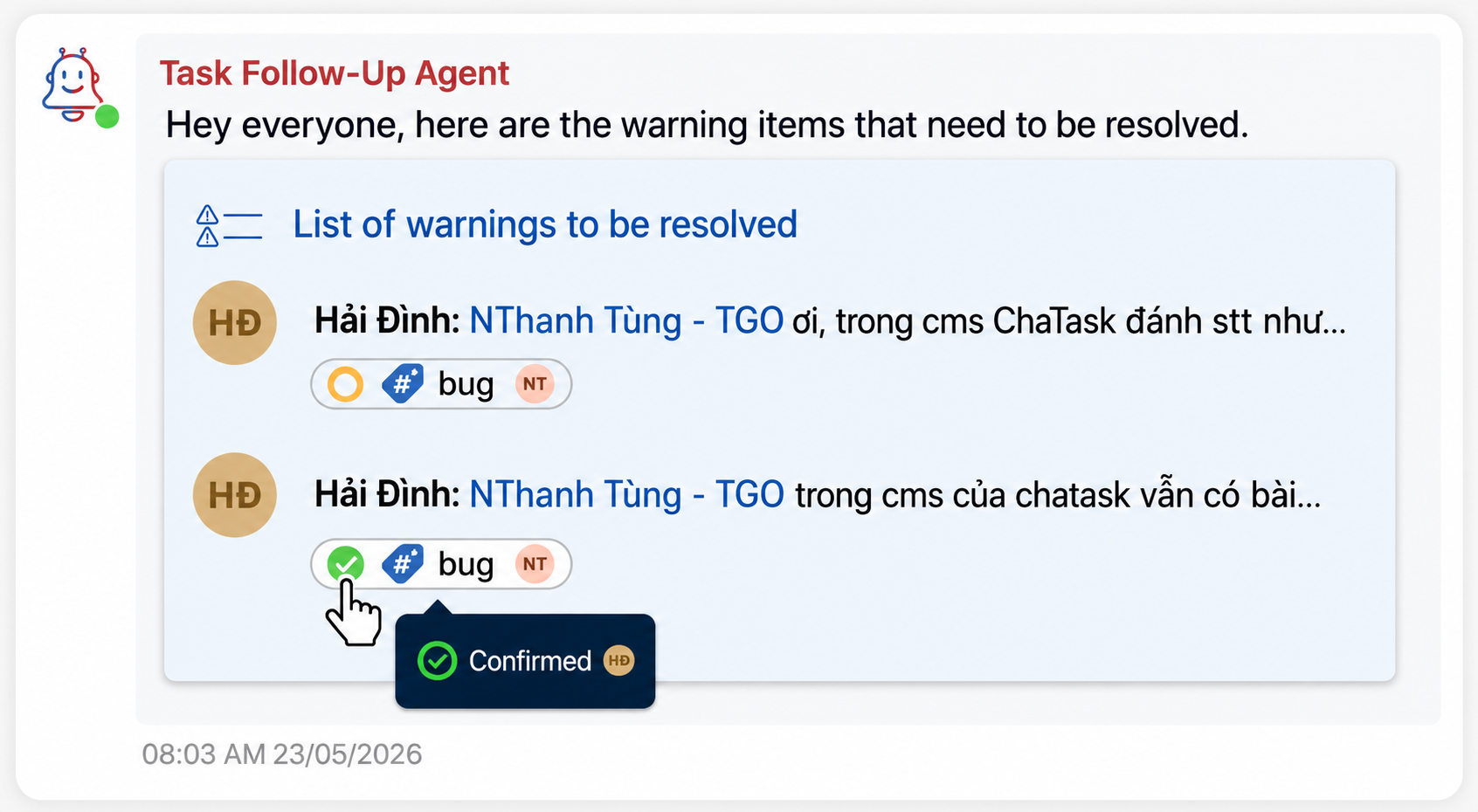
If everything meets the requirements, simply right-click the Label Warning and select Confirmed.
The label status will change to:
Confirmed
Only then is the Warning considered complete.
This two-step process helps:
-
Increase transparency
-
Reduce misunderstandings among team members
-
Prevent issues from being closed too early
-
Improve accountability during collaboration
Viewing the Warning List in a Task
Users can view all unresolved Warnings in two ways:
Method 1
Click the Warning icon in the Task Thread.
Method 2
Open the Task Info panel and select:
Warning
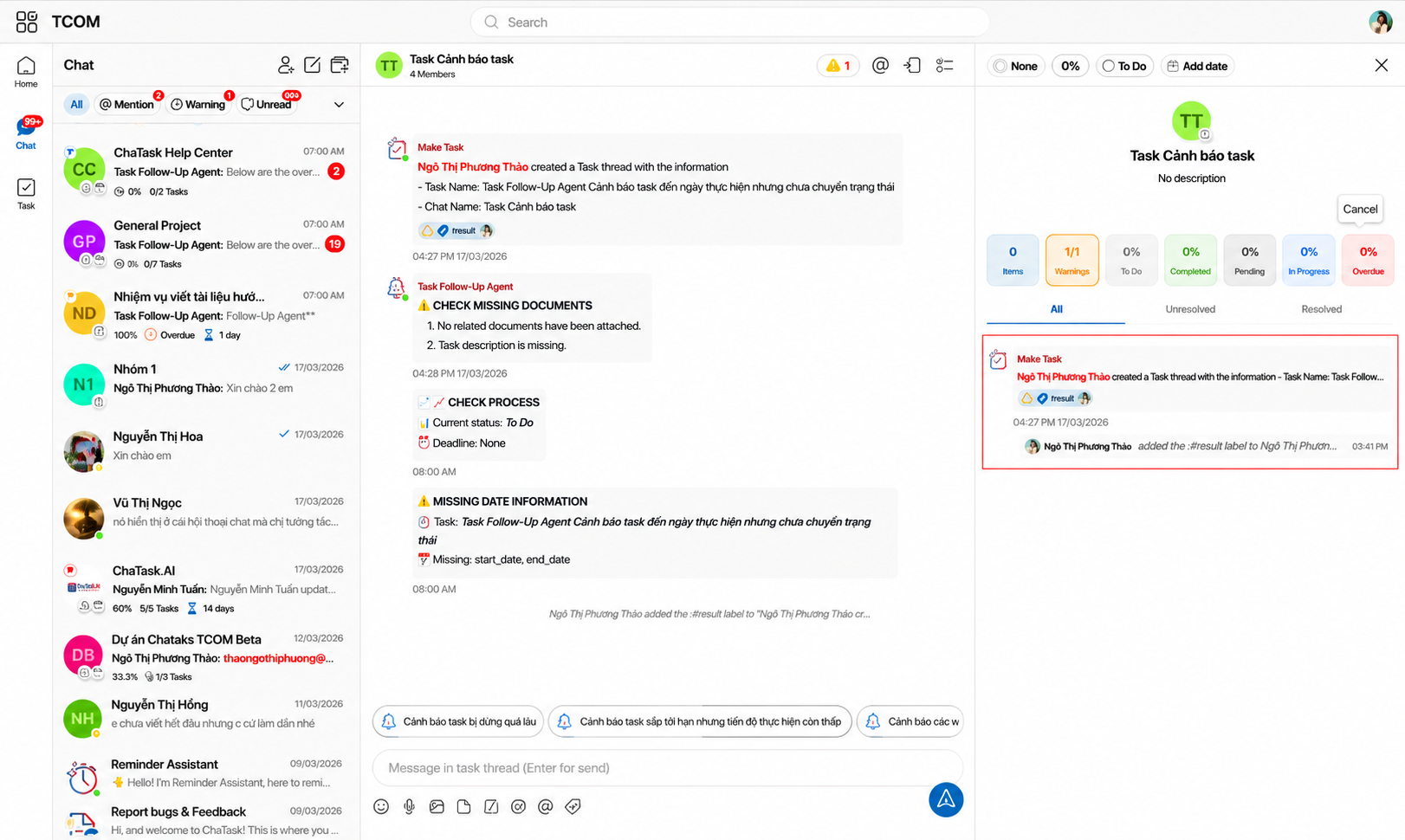
Here you can view:
-
The list of Warnings
-
The responsible person
-
The current status
-
The processing history
Processing History Is Stored Directly in the Conversation
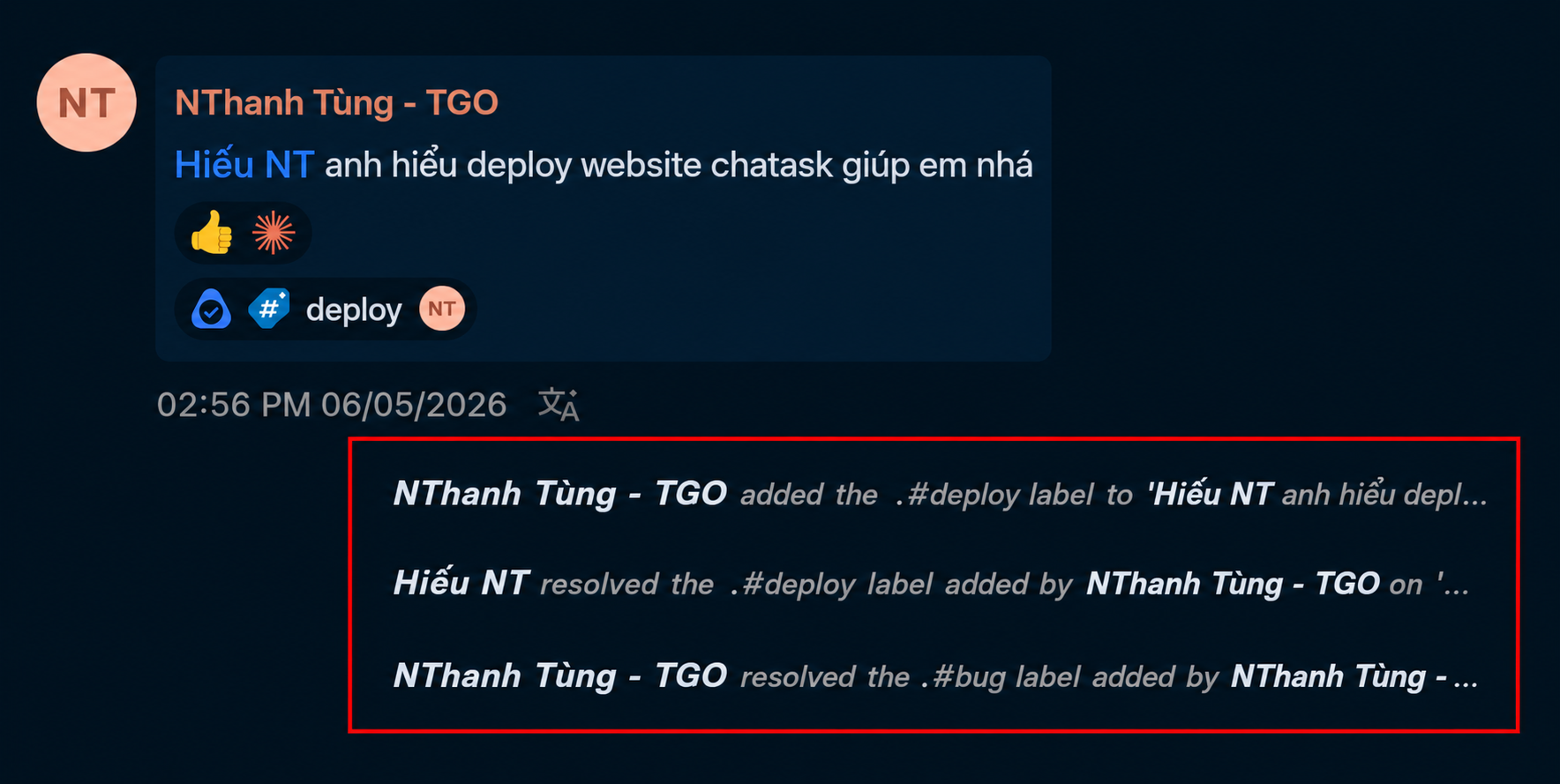
Every change is recorded directly within the Task Thread:
-
Who created the Warning
-
Who was assigned to handle it
-
When it was marked as Resolved
-
Who confirmed it
-
When it was confirmed
As a result, users do not need to search through emails or external notes to track progress.
When Should You Use Label Warning?
Label Warning is designed for situations that arise during discussions and day-to-day work, such as an issue that needs to be addressed, content that needs to be updated, or a new idea that should be tracked. These are items that are not significant enough to become separate Tasks or Checklists, but still require an owner, a processing status, and ongoing tracking until completion.
Conclusion
Tasks help manage planned work.
Checklists help manage the steps required to complete work.
Label Warning helps manage issues that arise during communication and collaboration.
By attaching directly to messages, assigning responsibility, tracking status, and leveraging AI Agent follow-up, Label Warning helps teams ensure that important day-to-day work items are never missed.