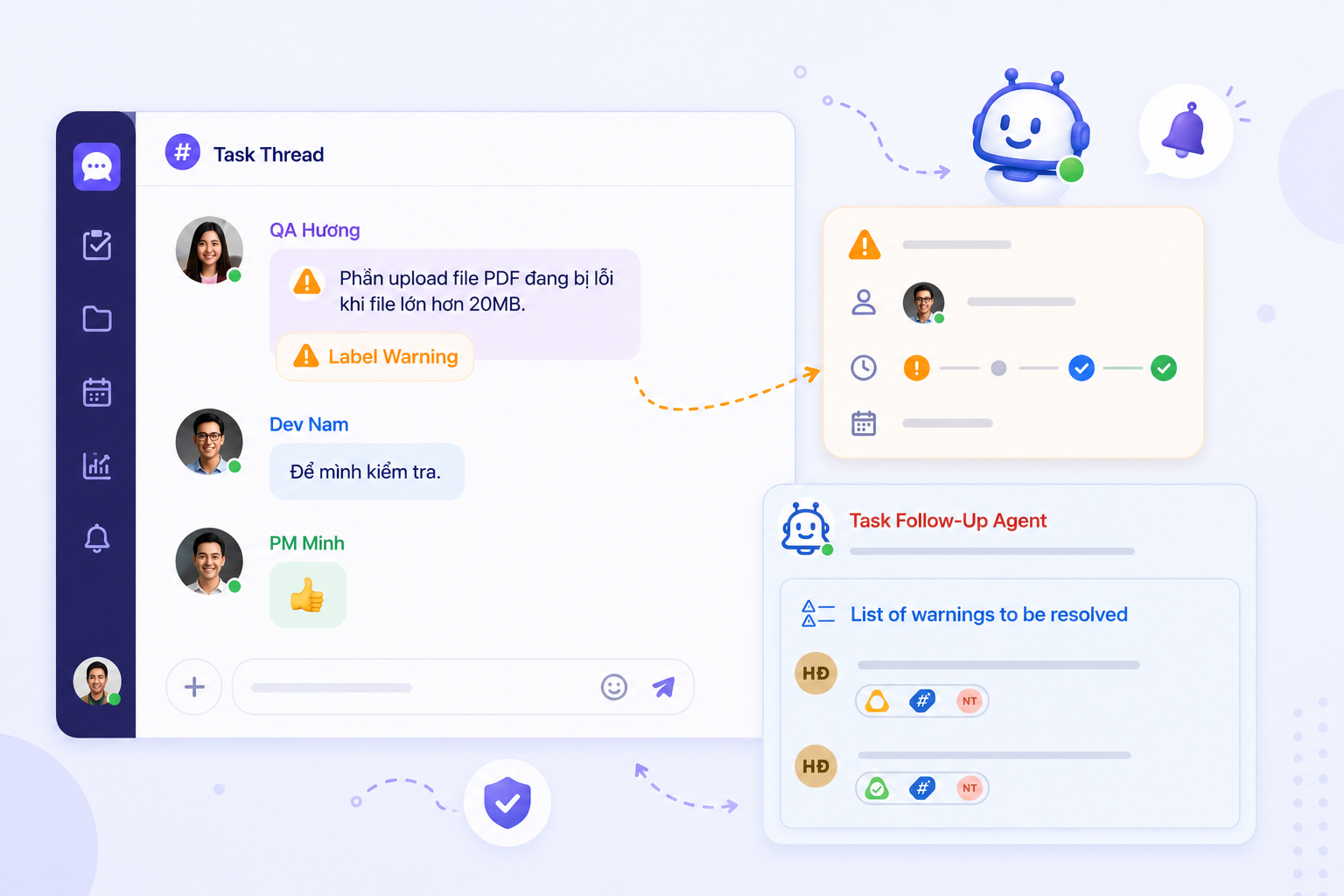
In any organization, handling a large volume of conversations, customers, and tasks every day easily leads to a familiar problem: information gets lost in the flow and issues are overlooked. An employee just discussed an important piece of customer information with a colleague, but a few hours later that message has been pushed up by dozens of other contents. A small error in a quotation is not clearly marked, and by the time it is discovered, it has already affected the deal. This is exactly why tools like Hashtag and Label Warning in Chatask become extremely important. They are not just supporting features—they help teams work systematically, control information better, and minimize operational risks.
This article will guide you on how to use Hashtag and Label Warning in detail, while incorporating a case study from the sales department to help you better visualize and apply them in practice.
1. What are Hashtag and Label Warning in Chatask?
In Chatask, Hashtag and Label Warning serve two different purposes but complement each other within the same workflow.
Hashtag is used to classify and retrieve information. When a message or task is tagged with a hashtag, it becomes part of a structured data system, making it easier to find later. (Figure 1.1)
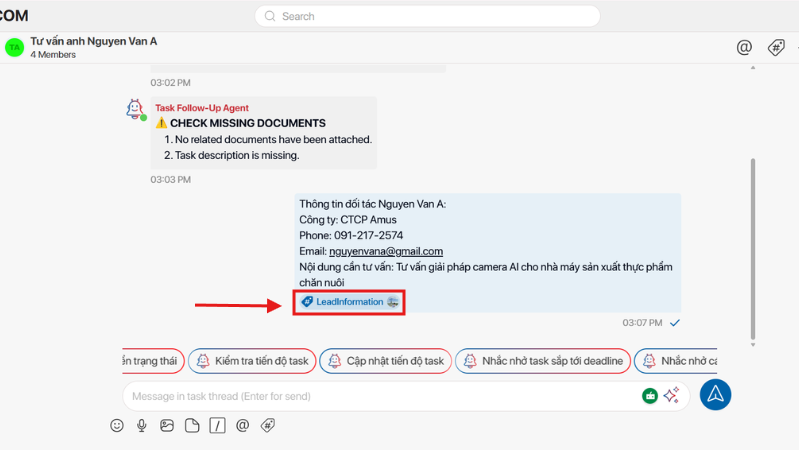
Meanwhile, Label Warning plays the role of marking issues that need to be handled. It helps important content avoid being “buried” in a large number of conversations. (Figure 1.2)
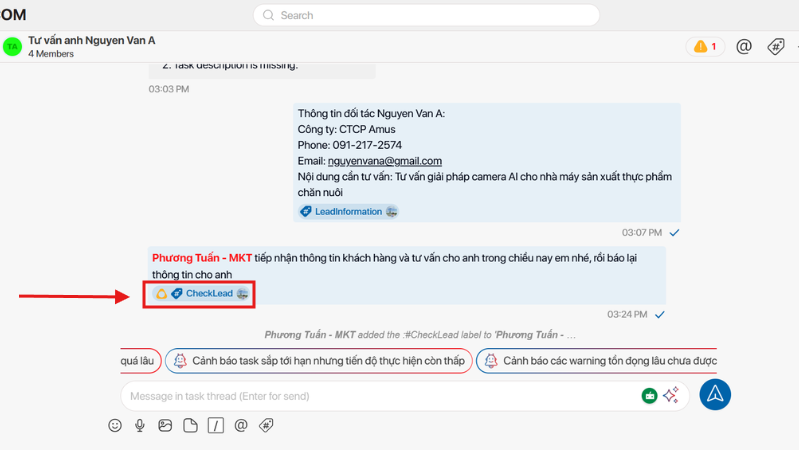
What makes these two features special is that they are directly attached to chat and tasks—the places where work actually happens.
2. What is Hashtag in Chatask? How to use it for quick search
2.1 How to attach hashtags to chat and tasks
Let’s start with a real situation in the sales department.
A sales employee has just communicated with customer A and received an urgent request for a quotation within the day. If this is just sent as a normal message, the information can easily get lost. But when adding a hashtag like #urgent or #deal, the content is immediately clearly “marked.”
How to do it: On the Chat screen, move the cursor over the message content you want to tag and follow steps 1 to 3 (Figure 2.1).
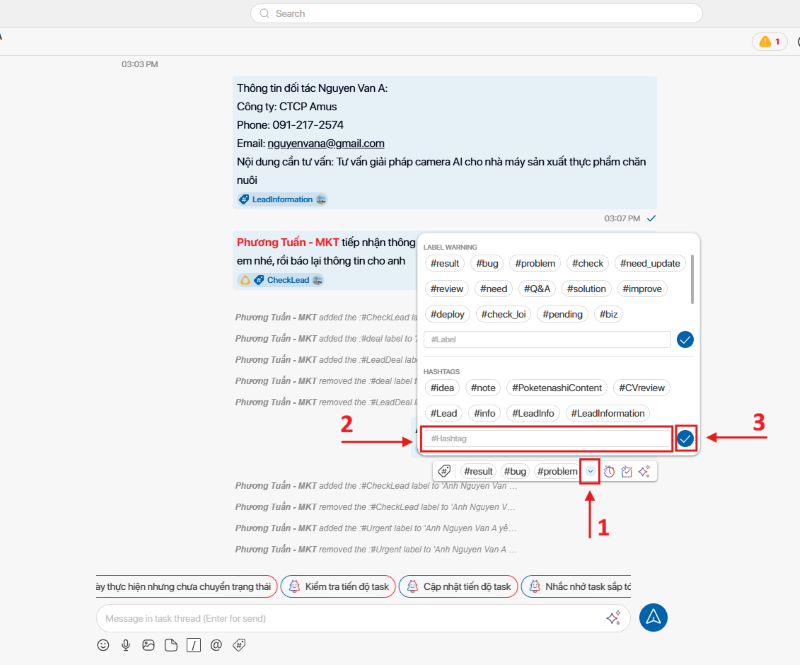
In Chatask, attaching hashtags is done directly on chats or tasks. Users can choose from available hashtags or create new ones depending on their needs.
Over time, the sales team can build its own hashtag system such as #lead (potential customer), #followup (needs follow-up), or #contract (under negotiation). When used consistently, these hashtags become a “common language” that helps the whole team quickly understand the status of work.
2.2 How to search content using hashtags
After one week of running a campaign, the sales manager needs to review all customers who require follow-up.
Without hashtags, this would take a lot of time. But with Chatask, simply searching for the hashtag #followup will immediately display all related data.
How to do it: Search for content using available hashtags by clicking the hashtag icon (Figure 2.2), or type the hashtag into the search bar (Figure 2.3).
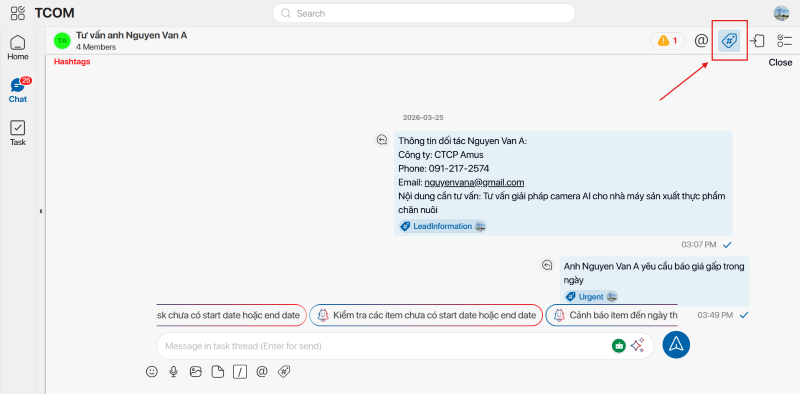
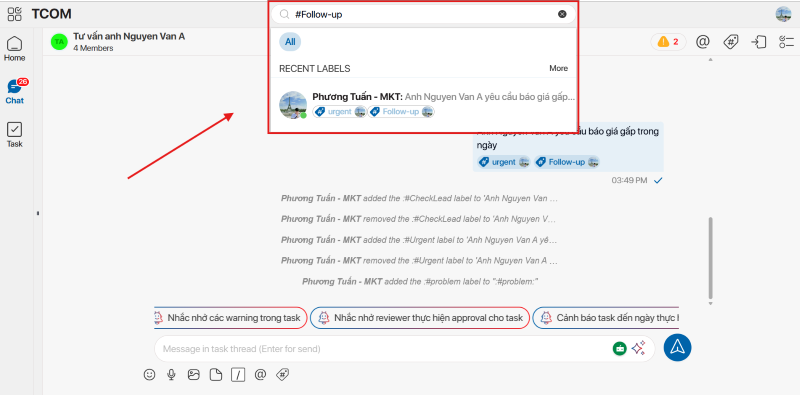
This is especially useful when creating reports or reviewing the sales pipeline. Instead of searching manually, you only need a few actions to retrieve the exact information needed.
2.3 Benefits of hashtags in a multi-task environment
In a sales department, data is often complex and multi-dimensional. Hashtags simplify this by organizing information with clear logic.
For example, a sales pipeline can be divided into stages from potential customers to closing deals. When each stage is tagged with a hashtag, tracking becomes much more intuitive.
As the number of tasks increases, managing information becomes more difficult. Hashtags help reduce the burden by turning scattered data into a structured system.
In the long term, hashtags also help standardize workflows and support more effective onboarding of new employees.
3. What is Label Warning in Chatask? How to mark and handle issues
3.1 When to use Label Warning
During work with customers, the sales department frequently encounters situations that require immediate handling: customer complaints, incorrect quotations, or deals at risk of failure.
If these issues are not clearly marked, they can easily be overlooked and not handled in time. Label Warning is used to ensure that does not happen.
Whenever there is negative feedback from a customer, the employee will attach a Label Warning directly in the task so the whole team is aware. (Figure 3.1)
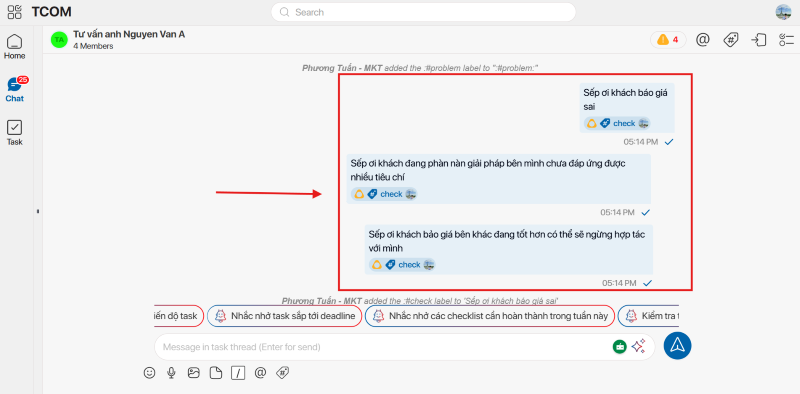
Therefore, Label Warning is not a feature for every message, but is designed to mark content that involves risks, issues, or needs to be prioritized within a task.
In reality, a task often contains many back-and-forth exchanges among members. Without a differentiation mechanism, important information can easily be “buried” in the conversation flow.
Label Warning exists to solve exactly this problem: turning a normal chat into a trackable point with a clear status.
3.2 How to attach warning labels in task threads
Label Warning is attached directly to messages within a task thread. Once attached, all members in the task can see the warning.
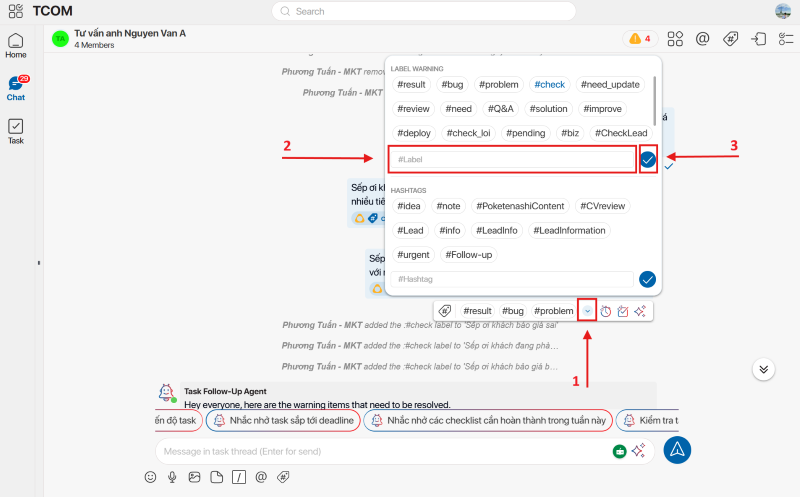
For example, when discovering an error in a quotation, an employee only needs to attach a label to the related message. From that point, the issue is no longer “hidden” in the conversation but becomes a clearly defined item that needs to be handled.
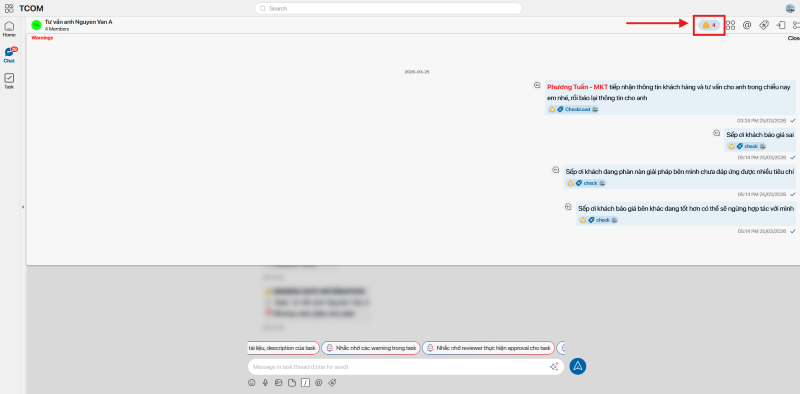
How to do it: On the Chat screen, select the message you want to attach a Label Warning to and follow steps 1 to 3 (Figure 3.2). To check the list of Label Warnings that have been marked but not yet resolved in a task, follow Figure 3.3.
3.3 Label handling process: Warning → Resolved → Confirmed
A very important point of Label Warning in Chatask is that it does not stop at “marking issues,” but also comes with a clear and controlled handling process.
When an issue is detected and labeled, it starts in the Warning state.
This stage records that a risk or error has occurred, and all task members can see it to stay informed. (Figure 3.4)
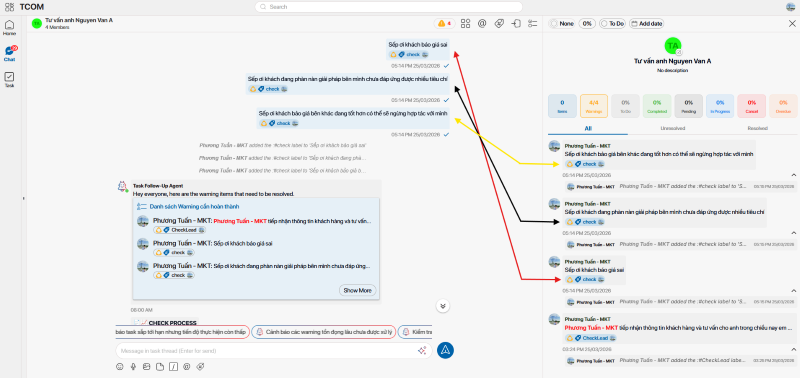
Figure 3.4
After that, when the responsible person has handled it and checks the label, the label moves to the Resolved state.
However, this step does not mean the issue is completely finished—it only shows that the execution side has completed the handling.
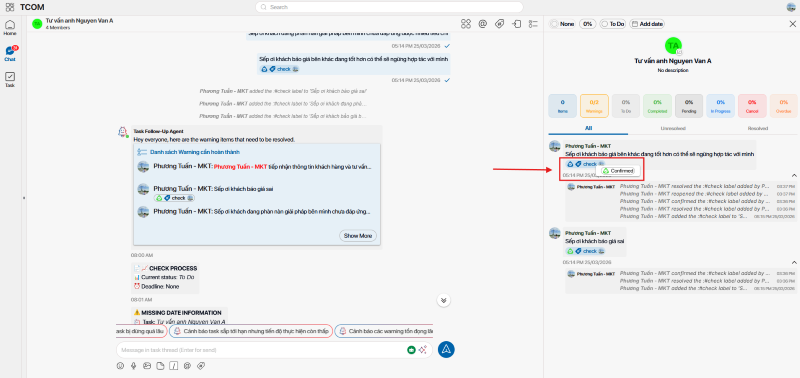
The label creator or the person responsible for verification will confirm the result with the Confirmed state.
This step ensures that the issue has been properly resolved and no longer affects the work. (Figure 3.5)
This three-step process helps avoid “half-done” handling and creates transparency in collaboration among team members.
3.5 The role of labels in controlling progress
During task execution, especially tasks involving multiple participants, the biggest problem is not lack of information but not knowing which issues need priority handling.
Label Warning acts as a “navigation layer,” helping important issues stand out instead of being buried in conversations. When a task has many items, managers can quickly identify bottlenecks affecting progress just by looking at the labels.
In addition, labels help track handling status over time. An issue that stays too long in the Warning or Resolved state without being Confirmed is a sign of potential risk that needs re-evaluation.
In environments like sales departments, where progress is directly tied to revenue, effectively controlling these “warning points” helps the team proactively address issues early, avoiding last-minute accumulation and impact on overall results.
4. Best practices for using Hashtag and Label
For Hashtag and Label Warning to be truly effective, the key is not using them frequently, but using them correctly and consistently across the team.
First, hashtags should be used from the beginning when creating tasks or in important messages. Early tagging helps classify information at the source, avoiding the need for later “data cleanup.” The team should also agree on a common hashtag system to ensure everyone understands and uses them consistently.
During work, all communication should take place within the task thread instead of being split across multiple channels. This helps maintain context and makes hashtagging and label tracking more effective.
When issues arise, Label Warning should be used immediately. The habit of “leaving it for later” is often the reason many issues are forgotten or not fully resolved. Attaching a label right away turns the issue into something trackable and controllable.
After that, labels need to be continuously monitored and updated until completion. This ensures every issue reaches its endpoint instead of stopping at “someone has handled it.”
Finally, when retrieving information, hashtags show their value clearly. Instead of spending time reviewing the entire history, you can quickly access specific groups of content that have already been categorized.
When used correctly together, Hashtag and Label are not just supporting features but become part of the workflow, helping teams operate more clearly, reduce errors, and significantly improve efficiency.
Conclusion
Hashtag and Label Warning in Chatask are not merely supporting features, but two tools that shape how you organize and control work in a clear and systematic way. As information increases and work speed accelerates, simply “communicating” is not enough—you need a way to classify, track, and handle information proactively.
Hashtag transforms scattered data into a structured system where information can be quickly retrieved when needed. Meanwhile, Label Warning acts as a control layer, ensuring that all arising issues are recorded, tracked, and resolved completely instead of being forgotten during the workflow.
When these two tools are used consistently together, they create a more coherent workflow: information is organized from the start, issues are handled with clear statuses, and all work becomes more transparent to everyone involved.
Experience Chatask now to build a clear workflow, control your work effectively, and never miss any opportunity here.